

Section I: DFN Grid Certificate
The certificate can be compared to a digital passport that shows your identity in the web and to other users in the web. You should therefore take care that nobody can get access to the private key of you certificate! Please use only good passwords to secure your certificate. You also need a master password for protection of your certificate in the firefox browser. You can also set a password for each exported certificate.
- Please check that you have activated the master passwort in your firefox browser. You can check by clicking 'edit / preferences / security' and check if the master passwort is enabled.
- To create a certificate go to the
 Grid-usercertificate page of the DFN (click here) and accept the unsigned security certificate of the homepage: it may be that you have to download a certificate and accept a security exception.
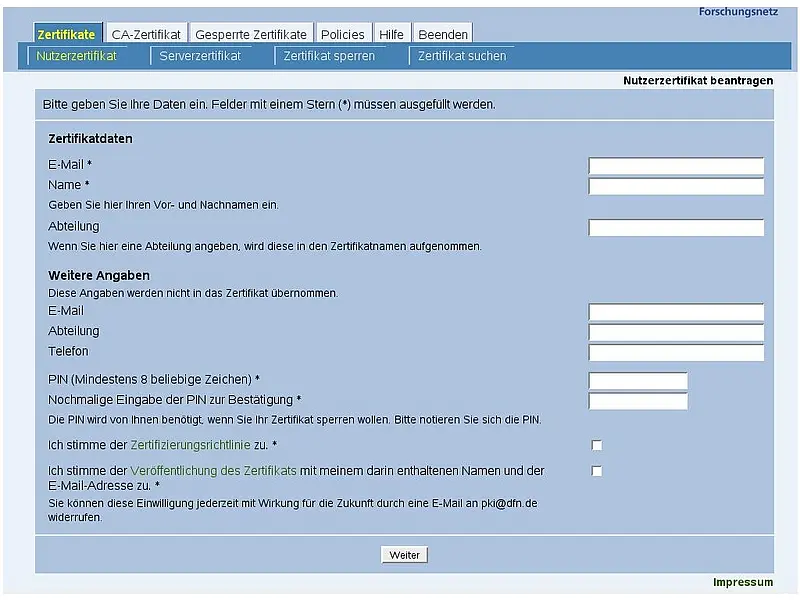
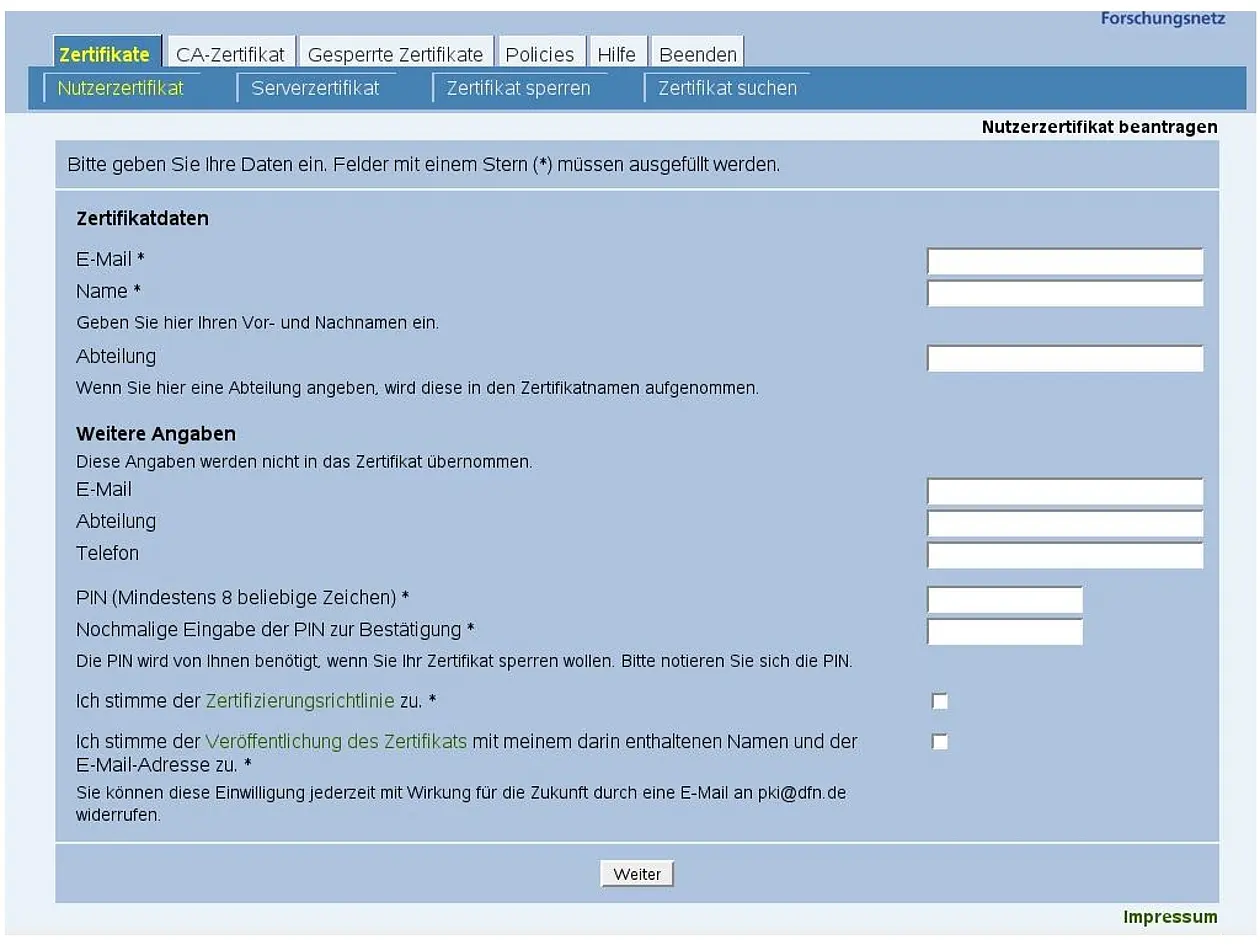
 - On the DFN homepage "Willkommen zur DFN-PKI", chose "Nutzerzertifikate" to get your user certificate. It should look like the picture (click to enlarge).
- WARNING: Please do not use special characters of any kind when applying for the certificate. Instead of the German Umlauts please use 'ae', 'oe', 'ue' and instead of 'ß' use 'ss'. Also, do not use special characters like ',' or '-'! In 'Zertifikatsdaten' you have to specify your email address, use your work email (e.Max.Mustermann@uni-tuebingen.deg. Max.Mustermann@uni-tuebingen.de), your name (as in your passport) and your department. Leave "e-mail" and "Abteilung" empty under 'weitere Angaben', but give your phone numer (e.g. +49-7071-29-XXXXX) and specify your PIN (you need the PIN if you have to disable your certificate). Finally, you must accept the 'Zertifizierungsrichtlinie' and confirm that you want to publish your certificate. By clicking 'weiter' the form will be sent for processing.
- On the next page, please check your data again. If everything is fine, then click 'Bestätigen' to send your data. If you want to change your data, please click 'Ändern'.
- Now the application for your certificate has been created and you can download it by clicking 'Zertifikatantrag anzeigen'. Print this application.
- In the printed application, specify your gender, the type and number of your passport (passport must be valid for at least 6 months from date of application), and the address of your department. Finally, finish the application by specifing place and date, and, of course, signing it.
- Now you have to take your signed application and your valid passport to the registering post of the GRID-RA. Please make an appointment with the Grid-RA
Back to Howto Guides Proceed with Section II